
- Promotions
How to Change the Keyboard Language on a Laptop?
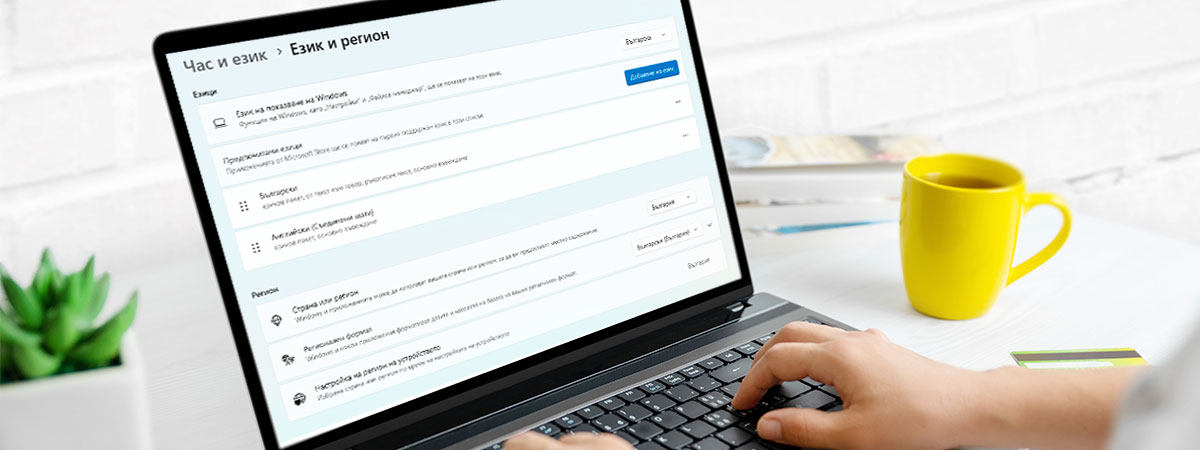
Table of Contents
1. Introduction to language layouts and why they matter
2. How to change the keyboard language – step by step
3. Common problems and how to avoid them
The ability to change the keyboard language does not just make typing easier – it is essential when you work in a global environment, communicate with international contacts, or simply want to write in your native language. Fortunately, changing the language layout is easier than it looks – as long as you know where to look for the correct settings and keyboard shortcuts.
Introduction to language layouts and why they matter
Regardless of whether you use Windows 10, Windows 11, a MacBook, or Linux, the correct keyboard configuration directly affects your productivity. The choice of layout determines how you enter characters, work with programs, and communicate. Many users do not even realize that they can customize the keyboard according to their own work style. Using the language bar and shortcut options gives you quick access to the necessary configuration with just one tap.
How to change the keyboard language – step by step
The process may vary depending on the operating system, but each one gives the user complete freedom to manage the language, keyboard, and layout changes. The following steps will show you the fastest way to get results.
For Windows 10 and Windows 11 - If you use Windows 10 or Windows 11, changing the keyboard language is easy and logical, as long as you follow the correct steps. Here is what you need to do:
- Open "System Settings" by pressing the Windows key + I.
- Select "Time & Language" -> "Language".
- Click "Add a language" and select the desired one (e.g., Bulgarian).
- After installation – change the layout using the language bar or the keyboard shortcut Alt + Shift or Windows + Space. If you want, customize the keyboard from "Advanced keyboard settings."
- You can add a shortcut for a specific layout from the same menu.
- Activate the visualization of the language in the language bar in the taskbar for quick access and easy monitoring.
With these settings, switching between the English layout and the Bulgarian layout happens in a fraction of a second, without interrupting your workflow.
For macOS (MacBook) - If you rely on a MacBook for work or study, managing the keyboard language is also easy. Follow these steps to set everything up correctly:
- Open "System Settings" (or "System Preferences," in older versions).
- Select "Keyboard" -> "Input Sources". Press "+" and add the desired language.
- Use the shortcut Command + Space for quick access to changing the layout.
- Enable visualization of the current language in the menu in the upper right corner.
- Set up keyboard customization to create your own layout or change buttons.
macOS allows you not only to switch but also to use advanced character input, which is especially convenient for people who type in more than two languages.
For Linux systems - Linux offers the greatest freedom for keyboard customization, including changing buttons, specific character input, and creating unique combinations. Here is how:
- Go to "System Settings" -> "Region & Language" or "Keyboard Layout".
- Add the desired language and layout.
- Choose a keyboard shortcut like Space or Alt + Shift.
- For advanced users – use setxkbmap in the terminal for quick switching.
- Configure shortcuts for different layouts, including Bulgarian layout and English layout.
Each of these operating systems gives you the full ability to change the keyboard language, but the best practice is to use shortcuts that fit your routine. This ensures trouble-free work and comfort while typing.

Common problems and how to avoid them
- The keyboard shortcut is not working. Check if it is set correctly in the system settings and if another program is not using it. Change it to a less frequently used one if necessary.
- The language bar is not showing. In Windows 10 and Windows 11, check if it is activated in the "Taskbar settings" -> "Turn system icons on or off" menu.
- The layout is not the one you want. You may have two layouts for the same language. Review and remove unnecessary options. For example, for the Bulgarian language, there is both BDS (Bulgarian State Standard) and a Phonetic Bulgarian layout.
- Characters are not coming out correctly. You may be using an international English layout, which changes the way characters are input. You can switch to the standard US layout.
- The selected layout is not being saved. Make sure that the settings are applied globally, and not only for a specific application. In Windows 11, this is done through the "Let me use a different input method for each app window" setting.
Create a work environment that meets your needs, habits, and style. Customize your keyboard to create your own logic that accelerates, facilitates, and inspires.